Instructions for claiming, updating or creating your lodging property listings:
- Go to TheHighlandLakes.com and click on the “ACCOUNT” link in the top menu. From there you can log in or register if you do not have an account. If you already have an account, skip to step 4.
![Screenshot of a website featuring a navigation bar at the top and a sidebar on the right, with an Edit Your Listing option and a red-circled REGISTER button beneath the LOG IN label.]()
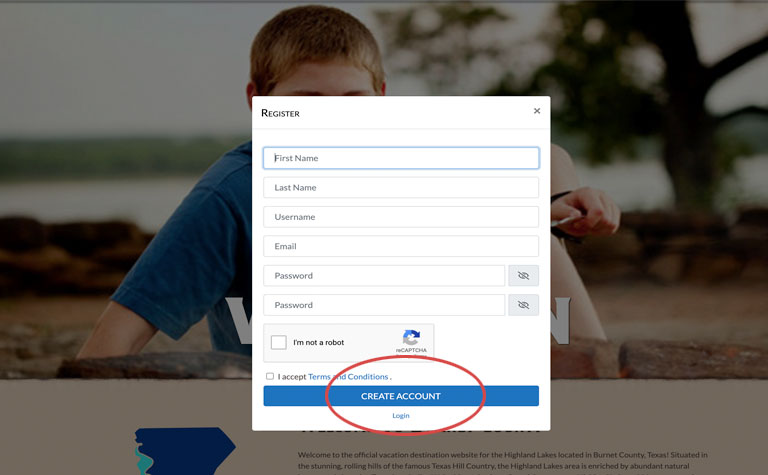
- Fill out the form to create an account on the site. (You will only need to do this one time. Once your account is created you can link all listings to one account.)
![A registration form overlay asks for first name, last name, username, email, and password, plus checkboxes for terms acceptance and CAPTCHA. The “CREATE ACCOUNT” button is highlighted with a red circle, similar to the Edit Listing interface.]()
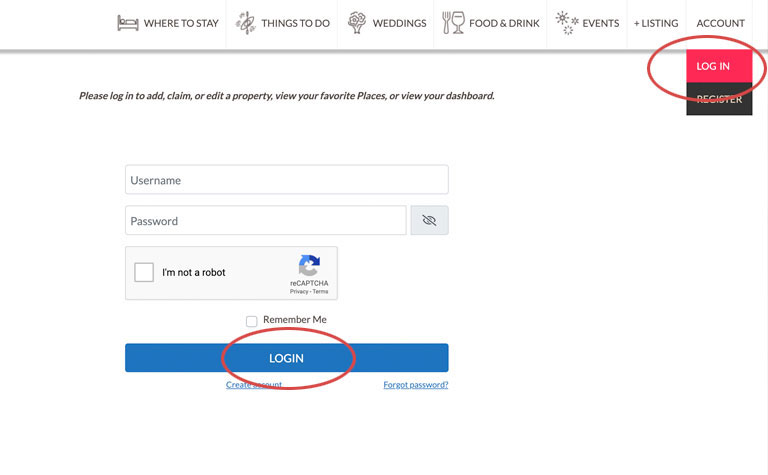
- log in to the site under ‘ Account’.
![Login page with fields for username and password, an “I’m not a robot” CAPTCHA, and a LOGIN button. LOG IN, ACCOUNT, and Edit Your Listing are highlighted in the top right corner of the screen.]()
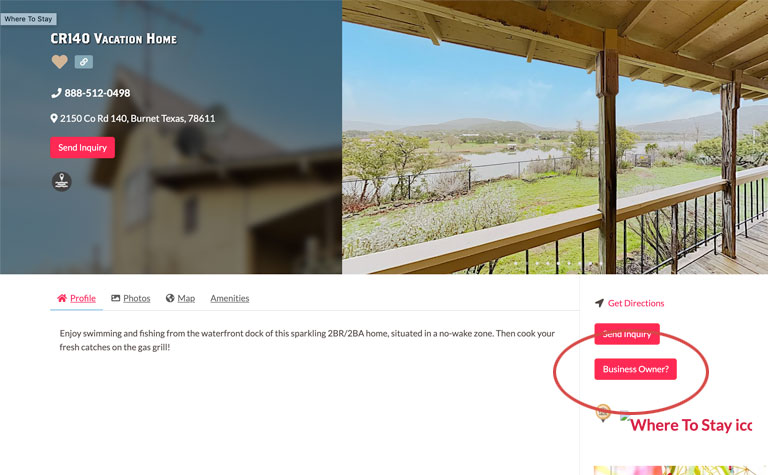
- Navigate or use the search to find your property and click on the “Business Owner?” button on the lower right side.
![Screenshot of a vacation home listing showing contact info, address, and a photo of a covered porch overlooking a grassy yard. Red circles highlight Send Inquiry, Business Owner?, and Edit Your Listing buttons on the right.]()
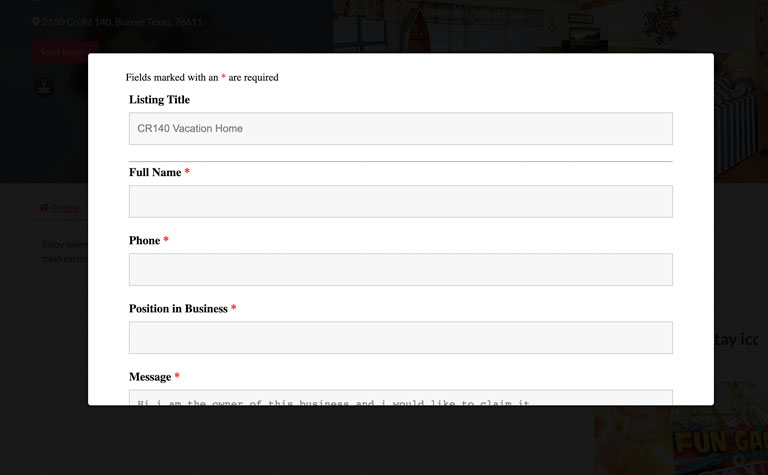
- Fill out and submit the listing claim for approval. You will be notified when that is approved. Once approved you will need to return to the site and log in to update your listing.
![A contact form with fields for Listing Title, Name, Phone, Position in Business, and Message—perfect for those looking to Edit Your Listing. Required fields are marked with a red asterisk. The example title entered is CR140 Vacation Home.]()
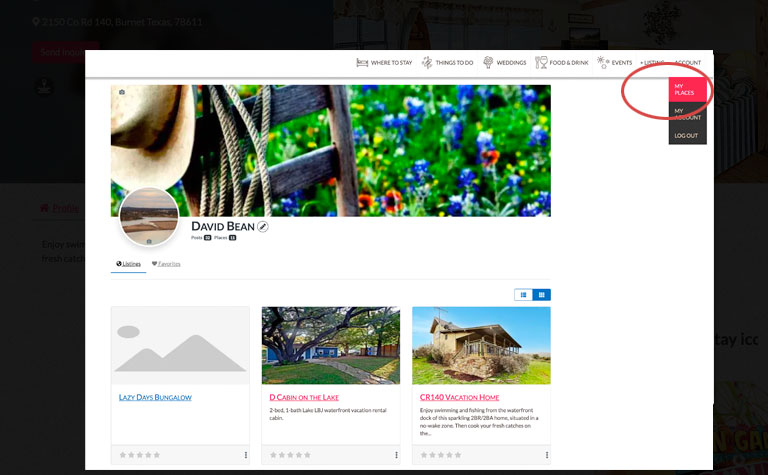
- Click “MY ACCOUNT”.
![A website user profile page is shown. A dropdown menu at the top right is open, with the My Places option circled in red. The page displays three property listings with images and brief details, alongside options to Edit Your Listing.]()
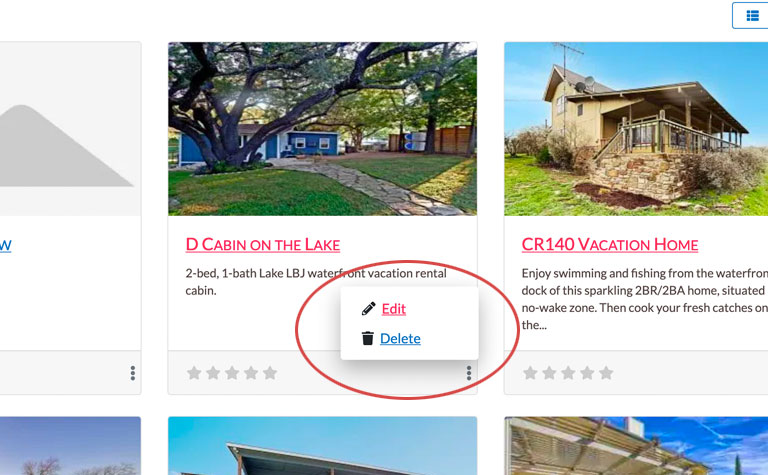
- From your account page you can edit claimed listing by clicking the 3 dots on the bottom right. Or you can edit directly from the listing itself. Don’t see the ‘Edit this post’? Make sure you are signed into the site.
![A website interface displays vacation home listings. The D Cabin on the Lake listing is highlighted, with an options menu open and Edit Your Listing and Delete buttons shown in a red-outlined circle.]()
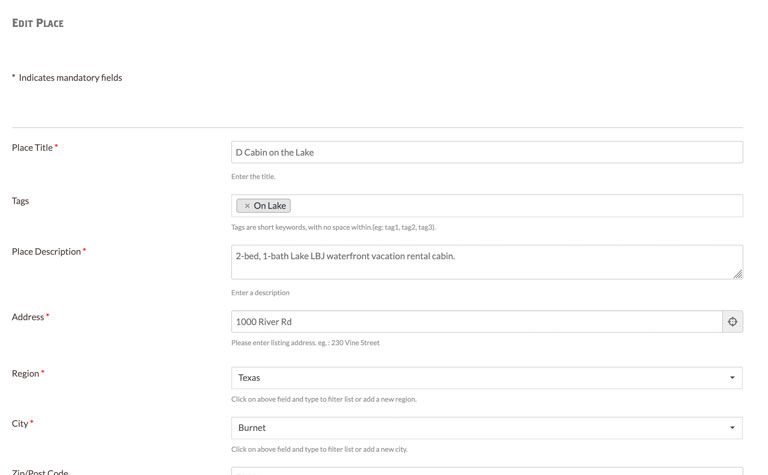
- Fill out the listing features/amenities form. *Being sure to fill out the form completely including the Amenities section at the bottom. Checking these boxes will tag your listing for ‘feature filter’ searching and add the symbol to your listing. Include files like a restaurant menu or add photos from the photo uploader at the bottom of the page.
![Screenshot of the Edit Your Listing online form titled Edit Place, showing fields filled for a waterfront vacation rental—place title, tags, description, address (1000 River Rd, Burnet, Texas), and region information.]()
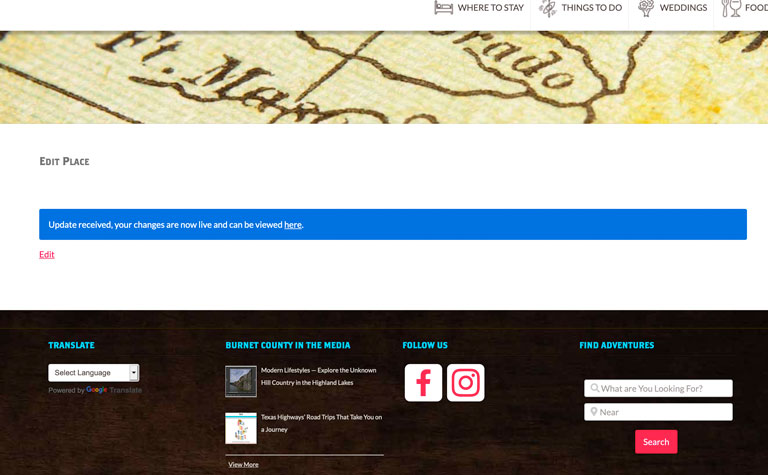
- Press the ‘SUBMIT LISTING’ button to save all changes. A success message will be displayed.
![A website page showing a section titled Edit Place for Listing Management, a blue notification bar stating updates are live, navigation icons at the top, and social media plus search options at the bottom.]()
- Repeat as necessary!